

No API key
Nothing to request, nothing to bill, nothing to paste into a settings pane. Install it and talk.
The voice input terminals never had
Hold the right Option key, talk, let go. The text lands wherever your cursor already is — a shell, an editor, a browser field. Recognition happens on your Mac, so there's no key to paste and nothing to upload.
Download for MacmacOS v1.7.5 · DMG · free, always Terminals can listen too.
Last login: Fri Oct 24 22:51:08 on ttys001
chris@MacBook-Pro voice-doggo % claude
›_ Claude Code is ready. Describe what you want to build.
Fix this page for me, then run the tests.
On it. I'll run the tests afterwards and tell you how they went.
Try the right ⌥ — same key, every app
four things, that's all
Nothing to request, nothing to bill, nothing to paste into a settings pane. Install it and talk.

The model is bundled and runs locally. No audio is uploaded, which is also why it keeps working with the Wi-Fi off.

No subscription, no minutes, no word count. Free now, and free the next time you open it.
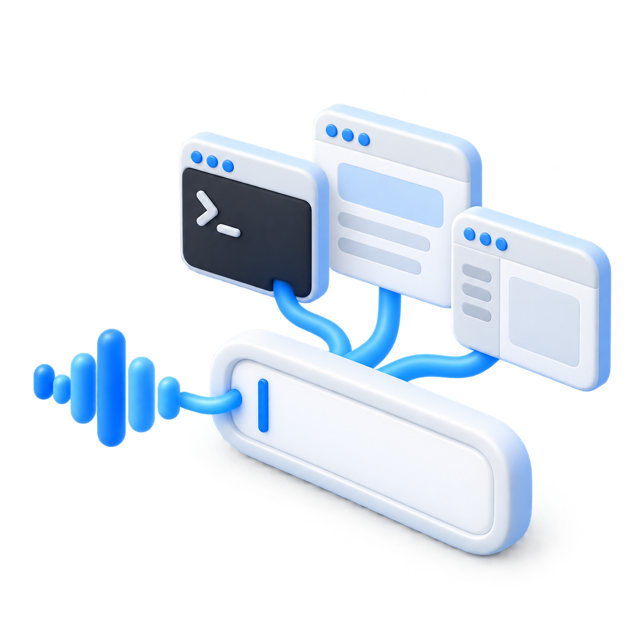
Terminal, editor, browser, desktop agent, an SSH session three hops away. Wherever the cursor is, that's where the words go.
how it compares
Plenty of AI tools ship voice input now. The catch is where it lives: inside that product's own chat box, usually with the audio going to a server first. Voice Doggo sits a layer lower — it types into whatever window has focus, and the audio never leaves the machine.
| Voice Doggo | Voice built into an app | Cloud speech API | |
|---|---|---|---|
| Where it types | Any focused window, terminals included | That app's own input box | Wherever you wire it up |
| Getting started | Install, grant two permissions | Open the app | Request a key, write the integration |
| Where the audio goes | Stays on your Mac | Usually to a server | To a server, by design |
| With the network off | Still works | Depends on the product | Doesn't work |
| Cost | Free | Depends on the plan | Metered or subscription |
Built-in voice features change from release to release. This compares the shape of each approach, not any one product on any one day — check the vendor's own docs before you rely on a row.
macOS 13+ · Apple Silicon (M-series) only
faq
No. There is no key to request, no account to create and nothing to paste into a settings pane. Install it, grant Accessibility and Input Monitoring, and start talking.
Yes. No subscription, no per-minute billing, no word quota, no paid tier holding the good part back.
Any macOS app with a text field. It delivers the transcript as synthetic keyboard input to the focused window, so Terminal, iTerm2, Cursor, Claude Code, VS Code, browsers, docs and chat apps all work the same way — including shells running over SSH or inside tmux.
No. Recognition runs on-device with a bundled offline model (FunASR SenseVoice). Nothing is uploaded to a speech API, and dictation keeps working with the network off.
Apple Silicon (M-series) Macs running macOS 13 or later. Intel Macs are not supported: recognition runs locally, and on Intel it is too slow to use.
Yes. The on-device model detects the spoken language itself and handles English, Chinese, Cantonese, Japanese and Korean. What it cannot do is learn custom vocabulary — the model has no hotword support, so camelCase identifiers and abbreviations are where you should expect to fix things by hand. Describing intent in plain sentences works better than spelling out symbols.
Check Secure Keyboard Entry first. With it on, macOS stops delivering key events to third-party event taps, so the app never sees the key you are holding and fails silently. Terminal.app has the toggle in its Terminal menu; iTerm2 keeps it under Preferences → General.
further reading
say Command)
Why built-in Dictation falls flat in terminal emulators, and the approaches that actually land text.